


 Current
location:
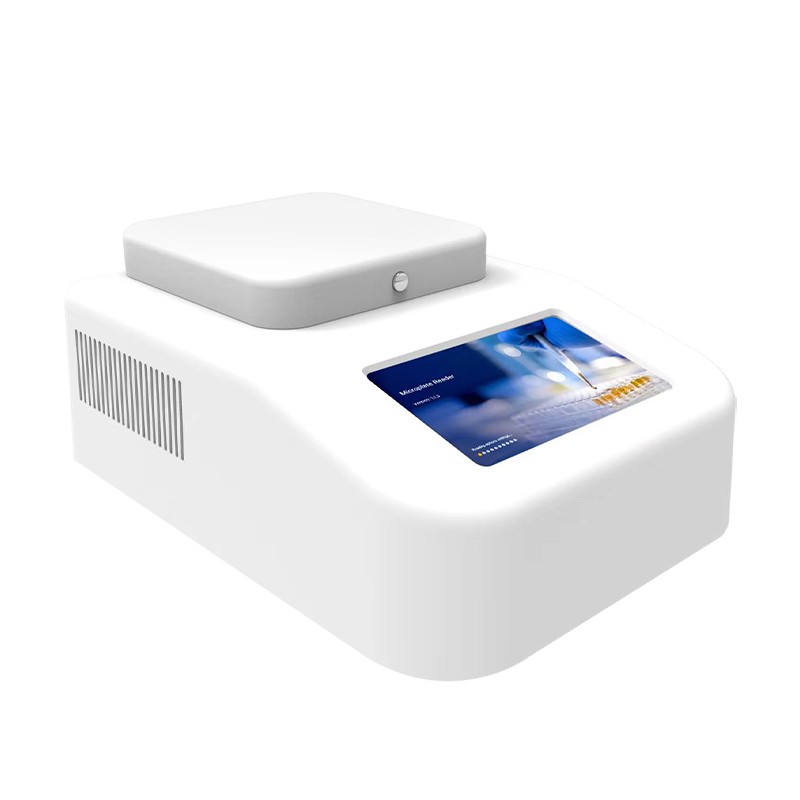
When a gradient PCR instrument shows an unexpected setting or behaves differently from a previous run, begin with the equipment record and the physical setup. The HM-T96 has a 96-position block for 0.2 mL vessels, a heated lid and a touchscreen display for the programmed profile and gradient distribution. A useful troubleshooting process identifies whether the discrepancy comes from the saved program, the position map, the consumables, the equipment or the record used to review the event. Work through one cause at a time and keep the original observation.
Capture what happened before changing anything
Record the instrument serial number, program name and revision, selected control mode, stage on screen and the time the problem appeared. If an alarm is shown, preserve the actual text or display code and note whether the instrument stopped or continued. Record which operator observed it and what was being handled at the bench. Take a permitted screenshot or a photograph of the display if that is part of your laboratory process. Keep the original worksheet with the event record so a second operator can reconstruct the setup.
Separate the observation from the suspected cause. An entry such as “displayed gradient map differed from worksheet at the equipment check” is useful because it identifies two things to compare. A statement such as “block heating failed” already assumes a hardware problem and may leave out the evidence that matters. Where the equipment is shared, identify the last documented acceptable check and any instrument moves, service work or changes to the consumables since then.
The gradient map and worksheet do not agree
Check the physical orientation first. Locate the front of the instrument on the worksheet and compare the written row or position labels with the orientation used at the bench. A printout can be rotated or copied into a new document without changing its labels. If both maps agree on orientation, check that the operator is looking at the same program revision and stage. A setup screen and an active stage can present different information. Confirm which value belongs to which location before replacing either record.
Review whether the worksheet shows a planned value, the number displayed by the instrument or an independent measurement. Those values serve different purposes. Where the disagreement is between a written plan and a controller display, reopen the accepted program and confirm the active stage and selected mode. If it is between a displayed value and a reference measurement, use the laboratory's equipment verification procedure and review the reference setup. Keep both records rather than transcribing one over the other.
The saved program opens with unexpected settings
Use a program name that identifies the owner, use and revision. The HM-T96 product information lists storage for more than 100 programs, so a shared unit can accumulate names that look nearly identical. Compare the accepted worksheet with the selected program before editing it. Verify the presence and order of the expected stages and inspect the fields the operator believes were changed. If a local copy was made, identify its source and the person who approved the change.
The HM-T96 offers module and tube temperature-control modes. Record the mode chosen in the laboratory equipment check. If two operators describe different behaviour, check whether they opened the same revision and used the same mode. Establish how the interface represents the active mode and whether your record shows it. Resolve any discrepancy in an approved bench check before relying on that program again. Keep revised working copies distinguishable from the equipment check used for troubleshooting.
The lid feels different or shows unusual resistance
Stop the setup and follow the vendor's instructions for handling the lid. Check that the consumables are approved for the installed block and that they are seated as specified. Look for a damaged cap, an improperly positioned strip or a loading aid interfering with closure. The instrument is described as having an elastic heated-lid structure. A change in the force required to close the lid deserves inspection before continuing. Ask a responsible equipment owner to review the setup if the cause is unclear.
Record the consumable part number and lot, loading arrangement and whether the same behaviour occurs with a known compatible empty setup under the approved checking procedure. If the behaviour persists, preserve the relevant observations for service and keep the instrument out of routine work according to your laboratory's procedure. Leave adjustments requiring access to internal components to authorized service. A better event record reduces the need to reproduce a mechanical problem unnecessarily.
The thermal profile looks slow or behaves differently
The published HM-T96 figures list peak heating of 4.5 °C/s and peak cooling of 4 °C/s. A peak ramp figure does not predict total elapsed time. When comparing two equipment checks, align the program revision, operating mode, fixture, measurement conditions and convention for marking start and finish. Inspect the stage where the time difference arises. Compare the earlier and later records under the same approved non-biological checking conditions.
If the discrepancy is limited to one stage, record its location and how the display changed. A repeat with altered settings can obscure which factor affected the comparison. Use the same accepted equipment profile when investigating repeatability, then document any separately approved changes. Visual display is a useful operating clue. For questions about actual block temperature, obtain reference measurements using the procedure described by the laboratory or service provider.
The independent temperature check is outside the expected range
Record whether the check concerns an absolute temperature error, differences across comparable positions or a disagreement with the expected gradient distribution. Review the reference instrument, calibration status and approved fixture before attributing the discrepancy to the cycler. Check that reference readings are paired with the correct positions and expected values. Where the fixture or method changed between checks, complete the comparison using a consistent approved arrangement.
Review the laboratory's acceptance rule before returning the instrument to service. If a discrepancy meets the condition for escalation, give the service team the serial number, affected positions, settings and original reference results. Specify which other functions still behaved as expected and what troubleshooting was performed. Retain the service outcome and any follow-up check necessary before the next release decision.
What to send to technical support
Provide the instrument identity, approved consumable part number, program revision and selected mode, together with the original screen or worksheet where available. For a recurring event, add the sequence of observations and the date of the last successful equipment check. Keep a note of which conditions were held constant and which were changed. For a mechanical issue, describe what the operator observed without forcing the lid or trying to open the enclosure. For a reference-measurement issue, include the fixture arrangement and the measurement record specified by the quality procedure.
A troubleshooting report should also state the instrument's current status and the person assigned to review it. Identify whether the event is closed, awaiting service, or pending a repeat equipment check. Keep the disposition separate from the instrument display itself. An acceptable message on the screen establishes what the operator saw, while the authorized reviewer makes the return-to-service decision using the checks appropriate to the event. Save the resulting record next to the equipment history so future operators can identify a repeated pattern.
HM-T96 product specifications from Shandong Hengmei Electronic Technology Co., Ltd.
Article address:https://www.molecularbio.cn/news/hm-t96-gradient-pcr-instrument-troubleshooting-heng-mei-intelligent-manufacturing.html